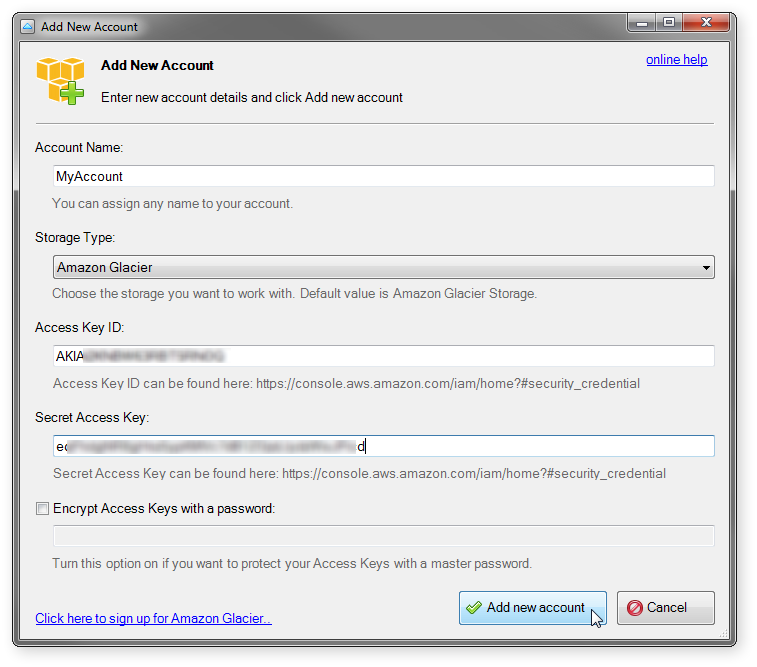
The Vaults section is located on the left hand side of the main window.
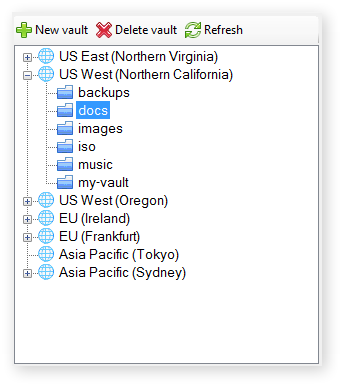
The Vaults section displays a list of vaults in selected region.
The Vaults section displays a list of vaults in selected region. You can create up to 1000 vaults per region.
Using the New, Delete and Refresh buttons you can create and delete vaults, and refresh vaults list.
The Files section is located on the right hand side of the main window.
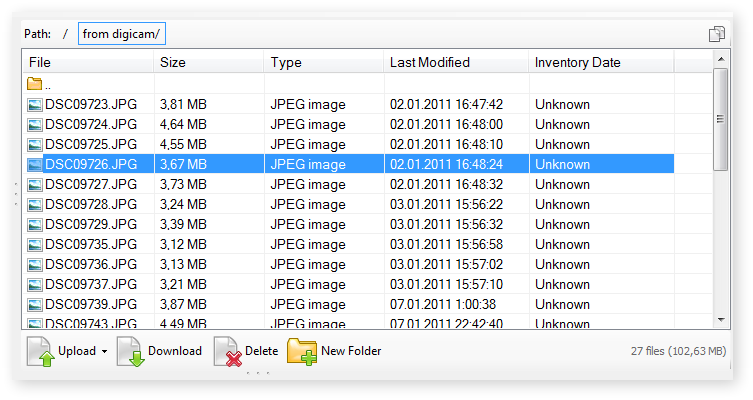
The Files section displays a list of files in selected vault.
The Files section displays a list of files and folders in selected vault.
Click the Upload button to upload your files and folders to Amazon Glacier
Click the Download button to download selected files and folders to your local disk.
Click the Delete button to delete selected files and folders.
The bottom half of the window contains three tabs: Tasks, Properties and Event log
The Tasks tab displays the running, queued, stopped and failed tasks.
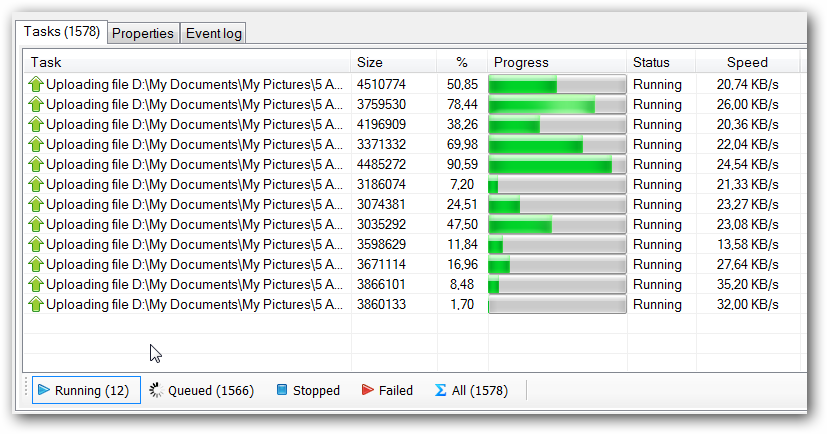
The Tasks tab displays a list of running, queued, stopped and failed tasks.
You can switch between categories using corresponding buttons located on the toolbar: Running, Queued, Stopped, Failed, All,
The context menu allows you to start, stop, cancel and retry the tasks.
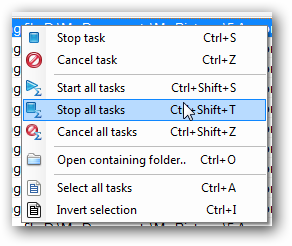
Tasks context menu allows you to start, stop, cancel and retry the tasks.
The Properties tab displays the properties of selected vault or file.
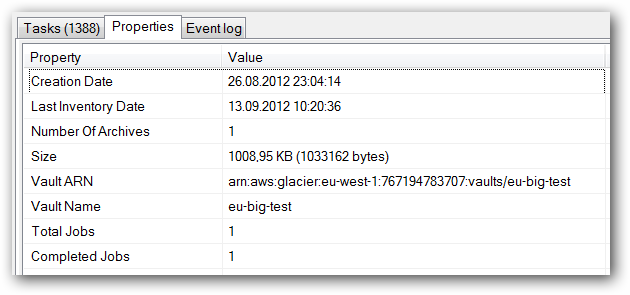
The Properties tab displays the properties of selected vault or file.
The Event log tab displays last 1000 log messages.
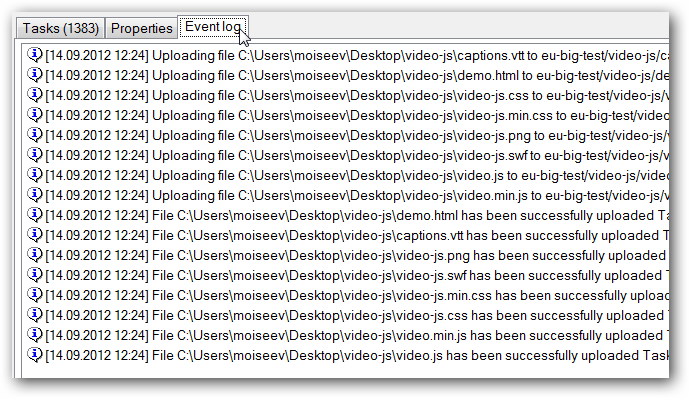
The Event log tab displays last 1000 log messages.
You can configure logging settings in Tools -> Options -> Logging.